Rendering Red Slate tile with Photoshop 7.0 (continued)
Dated: 13 April 2008
Author: Jason Gonzalez
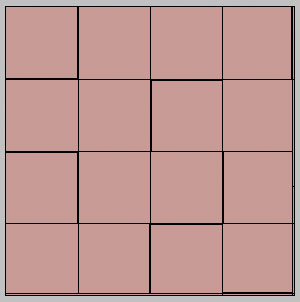
- Using the Pencil tool at 1px Black, we will draw lines
horizontally and vertically along the guides (except for the top and left
sides). To give the lines a more tiled look, we can uncheck Snap to
Guides, and draw some more lines directly next to some of the edges.
The look we are going after is represented below:
- Next, we click on Layer 1 (or whatever name you chose). We'll use one of
the Paintbrush tool's Spatter textures
 with
the RGB color 205, 141, 124 saved before.
(Brush size should be 35px, Mode: Normal and Opacity: 75%). Then we draw feather
shaped paint patterns in various areas
with
the RGB color 205, 141, 124 saved before.
(Brush size should be 35px, Mode: Normal and Opacity: 75%). Then we draw feather
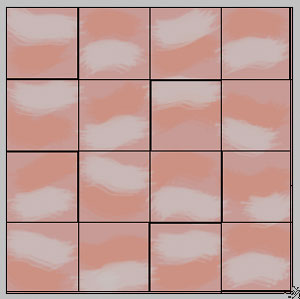
shaped paint patterns in various areas - Now, we add another new color and save. R: 209, G: 194,
B: 193. With this color, we brush with the same settings as before
in adjacent areas to the darker paint shapes. The drawing should look as pictured
below:
- We now Add Noise with an Amount of 4 and Gaussian setting. Then we use the Motion Blur filter with an angle of 0 and a distance of 3