Rendering Red Slate tile with Photoshop 7.0 (continued)
Dated: 13 April 2008
Author: Jason Gonzalez
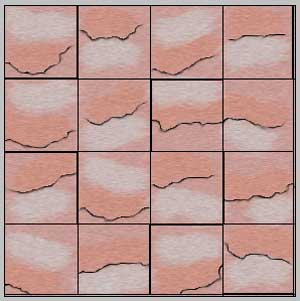
- We must create another New Layer above Layer 1 but below Layer 2. On this layer we draw shadow lines with a 1px black Pencil outlining the bottom edges of the darker areas (we will want to zoom in for accuracy).
- Using the Smudge tool (Brush size: 5, Strength: 50%) we
need to smudge the area beneath each line to give the shadow look. You may
use the the screenshot below as a guide
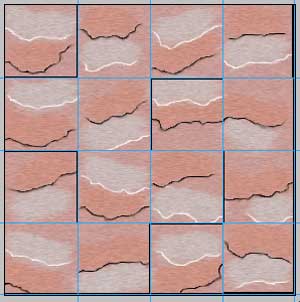
- On this same layer, we draw white lines with a 1px Pencil
for highlights within the light areas (also toward the bottom). We use the
same Smudge tool technique above, smudging the tops of the
lines. How this looks is shown below:
- Next, we lower the Opacity of the above mentioned layer to 30%
- We now click Layer 1 again and select the light areas of this layer with the Magic Wand tool with a Tolerance of 3 (Use Shift to select more than one area). Apply the Wave filter (Distort > Wave) to these areas with a Wavelength minimum of 61 and a maximum of 135 (these can be adjusted as you see fit)
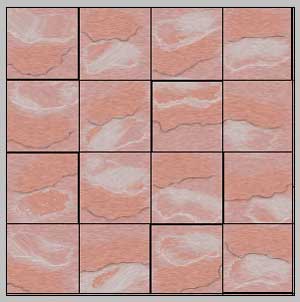
- And thats it! You have photo-realistic red slate tile. The final image is
shown below: