Creating Layered Tiled Sand in Photoshop 6.0 (continued)
Dated 14 July 2005
Author: Jason Gonzalez
- We will name the new layer "highlights" (without the quotes) and dab the highlight color onto the new layer
- Control-click (right-click) the layer and select Layer Properties. A dialog box will come up. Under Name: type highlights
- For this, we use white as the color
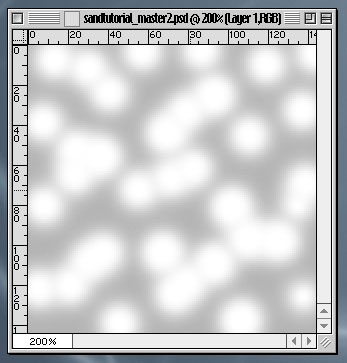
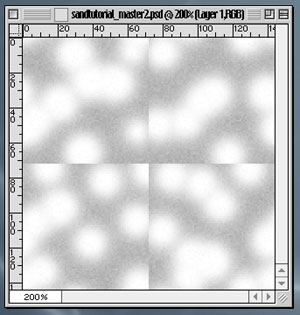
- We can use an Airbrush setting of Brush Size: 27, Pressure: 100 and Mode: Normal. How it looks is pictured below:
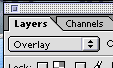
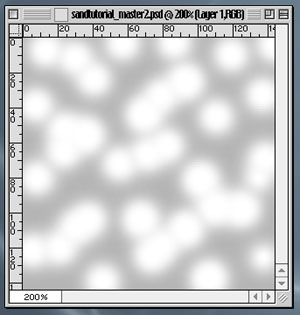
- Next, we apply the Overlay blend mode found in the drop-down box at the top of the layers palette
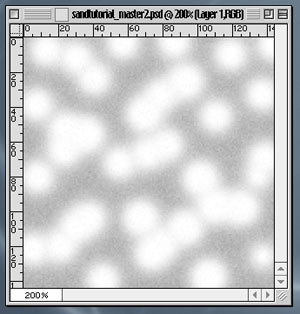
- We must apply the Add Noise filter to the background color
- Apply Add Noise Amount: 155, Gaussian and Monochromatic to the background layer
- We can now Offset the "highlights" layer
- We go to Filter > Other > Offset and offset vertically and horizontally 72 pixels