Creating Tiled Sand in Photoshop 6.0 (continued)
- Using the Airbrush
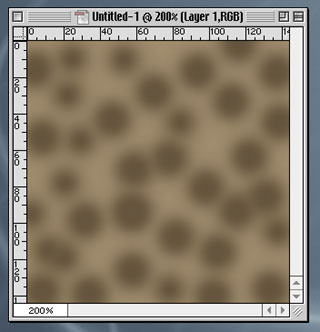
 tool at 27 brush size, 100 pressure and Normal mode, we dab (by double clicking) the current foreground color onto the top of the other filled color
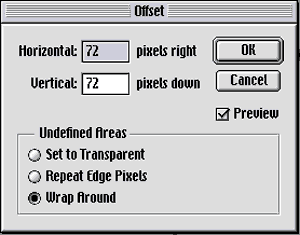
- Immediately following, we could apply the Offset filter
under Filter > Other > Offset and Offset the horizontal
space and vertical space by 72 pixels. This will insure that the
texture will tile
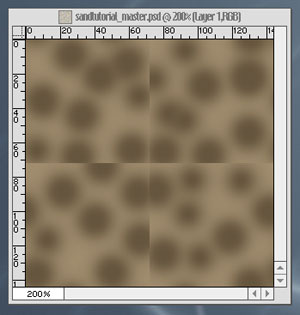
- And now we erase the seams in the middle
- First we must make the background color the original sand color we started
with
- Pressing x on the keyboard will switch the foreground and background
colors
- Then we select the previously saved swatch and make it the foreground
color. Below are screenshots of four swatch states:
- We press x again to make the darker color the foreground.
- Using these techniques, we could use the Airbrush tool
again to cover up the visible lines in the middle. We should be careful
not to touch the outer edges as this will cause more seam lines
- If some areas are too spotty, we could use the original color and the
Airbrush tool