Creating Tiled Sand in Photoshop 6.0 (continued)
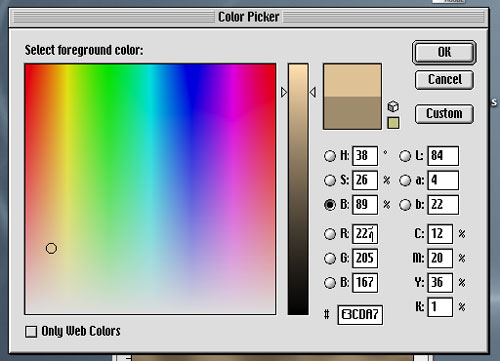
- Next we select the original color and adjust the brightness (for the sand’s highlights). I adjusted to B=89
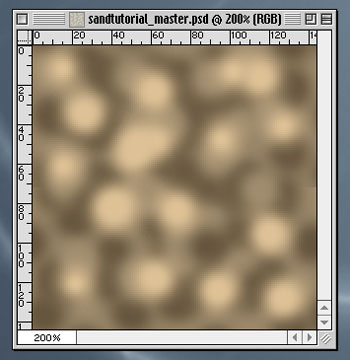
- Then we can apply that color via airbrush by dabbing. Again, we try not to touch any of the edges but get as close to them as possible (and throughout)
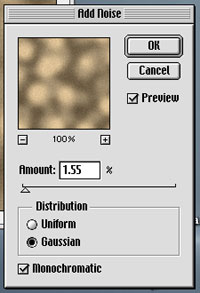
- Then we use the Add Noise filter at 1.55 pixels, set it to Gaussian and check Monochromatic (this is important)
- If the Add Noise texturing is too harsh, we can also apply a small amount of Gaussian Blur
- Finally, we Save the image as a PSD and a GIF with the same descriptive
name.
- To use these on a web page as a background, use the Save for Web option
- I experimented using as few as 16 colors in GIF mode with little image degradation. We can experiment with its controls to see what suits the image
- Using HTML or CSS, the background pattern can be repeated behind any web page. Instructions on how to do this can be found at any tutorial website, such as Tutorialized.com.
*Extras
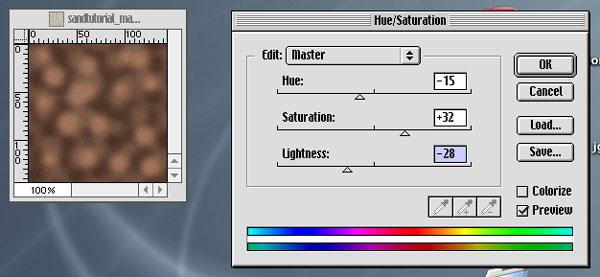
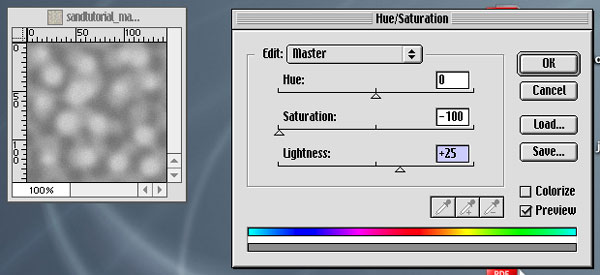
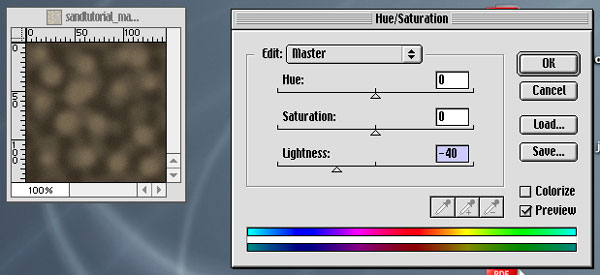
After adjusting the color using Image > Adjust > Hue/Saturation, I came up with these new looks:
Red Sand
Light Sand

Gray Sand
Dark Sand
*It is strongly advised to save each color change as a new gif or jpeg file via Save for Web.