Creating Water with Photoshop 6.0
Dated: 27 December 2007
Author: Jason Gonzalez
This tutorial was originally designed to work with Photoshop 6.0 and up, however, I used version 7.0 as the tool to create our images. This tutorial can be adapted for the latest version of Photoshop, provided that it features the same tools used here.
Since I used a Macintosh for this tutorial, Windows specific keyboard shortcuts will be shown in parenthesis. Screenshots will be provided as necessary.
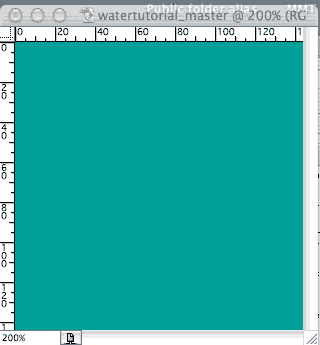
- First, we open a New file at 72 dpi and 144 x 144 pixels
- Save As a descriptive title
- We might also want to zoom in to about 200% using Command (Ctrl) +
- Next, we fill with a blue-green color using the Paint Bucket tool. I chose R=0, G=168, B=168
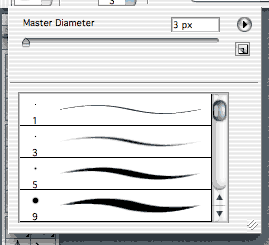
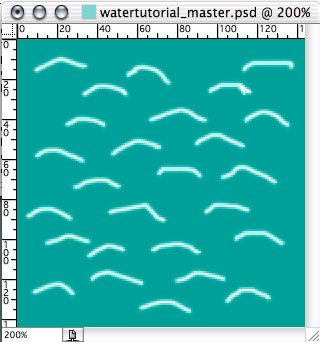
- With the paintbrush set at size 3 with a hard edge, we will draw several upside down v shapes (or shapes that look like waves). The color should be white. Avoid touching the edges of the drawing space