Creating Water with Photoshop 7.0 using Layers
Dated: 28 December 2007
Author: Jason Gonzalez
After looking at the instructions for the first tutorial and seeing the finished result (as a Mac OS X background), I realized this tutorial could use some tweaking. And a better way is to use layers so that if we change the background color the same effect would apply. This tutorial assumes knowledge of the Photoshop workspace.
- Open a New file at 72 dpi and 288 pixels by 288 pixels (for more working space)
- Fill with a blue-green color. I chose R=0, G=168, B=168.
- Create a New Layer
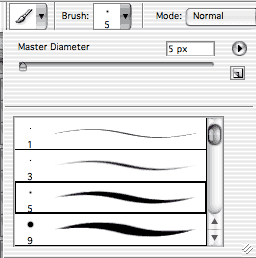
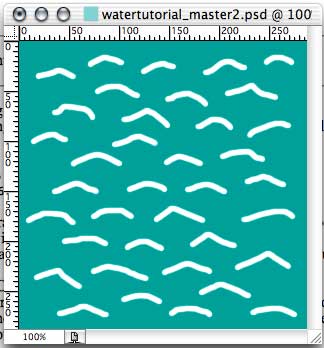
- With the paintbrush set at size 5 px with a hard edge, we will draw several upside down v shapes (or shapes that look like waves) on the New layer. The color should be white. We try not to touch the edges of the drawing space