Creating Water with Photoshop 7.0 using Layers
Dated: 28 December 2007
Author: Jason Gonzalez
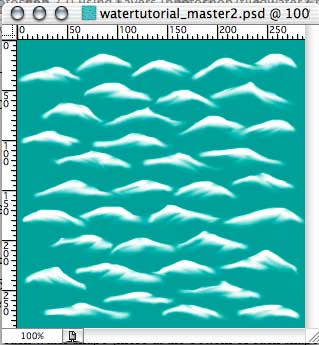
- Next, we use the Smudge tool to smear each water shape (more at the bottom of each shape than the top) with a Strength of 50% and a brush size of 13 px (hard-edged). Also, smudge diagonally under each wave shape and be sure not to touch the edges
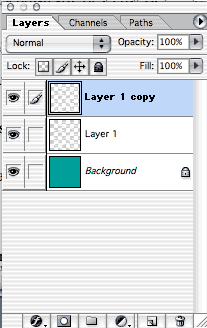
- In the Layers palette, we drag the Background layer to the Create a New Layer button to copy the layer
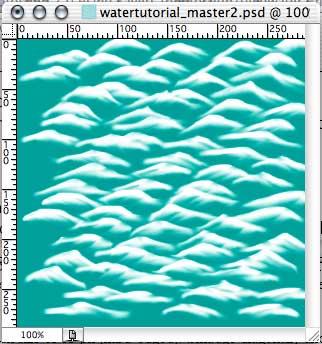
- Now, we go to the Move tool and move the topmost layer (Layer 1 copy) up in a 45-degree direction (in the upper right) until both layers look approximately even
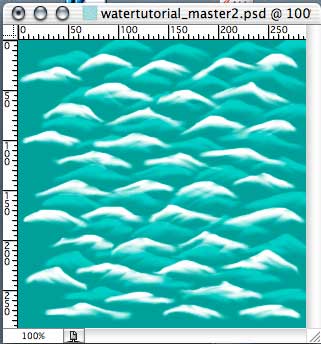
- Let's use a layer blending mode on the topmost layer. Experiment with these as they vary depending on the colors used. For this I tried Soft Light
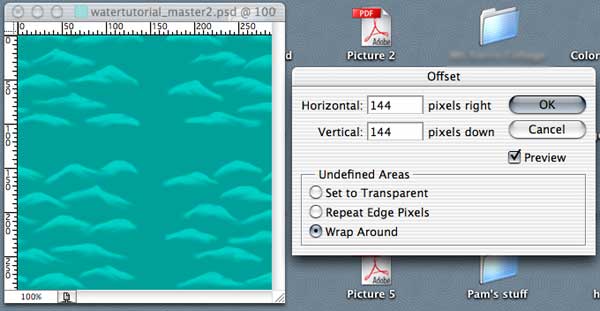
- I tried to Merge Down the second copied layer but Photoshop 7 discarded the blending mode, so we must Offset both wave layers. First let’s work on the topmost layer. Hide the layer below (usually called Layer 1). Next, we go to Filter < Other < Offset (144 pixels right and down)