Creating Water with Photoshop 6.0
Dated: 27 December 2007
Author: Jason Gonzalez
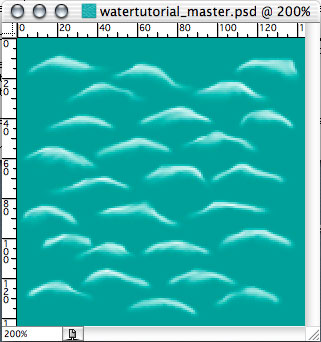
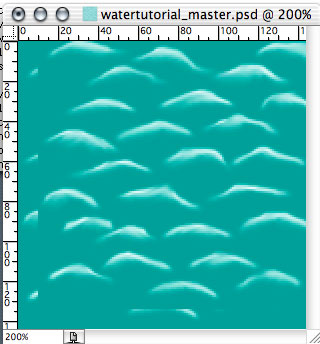
- Next we use the Smudge tool to smear each water shape (more at the bottom of each shape than the top) and set the pressure to 50% and the brush size to 9. Try to smudge each shape in diagonal directions and be sure not to touch the edges
- In the Layers palette (If it is not open go to Window menu item > Show Layers), we drag the Background layer to the Create a New Layer button (it has an icon with a piece of paper with a corner folded) to copy the layer
- Now, we go to the Move tool
 and hit the right arrow key 10 times and the up arrow key 10 times (this moves the copied image 10 pixels right and 10 pixels up). Hide the background layer by clicking the eye next to it and fill in the empty space with the blue-green color on the copied layer
 - We use a layer blending mode (either Multiply for a dark effect or Soft Light for a lighter look). Experiment with these as they vary depending on the colors used. For this I used Soft Light
- Next, go to the Layer top menu > Merge Down to merge the layers together